Use this guide to download, deploy, activate, and configure the GNAME domain registrar module in WHMCS. The screenshots were captured from a Chinese-language WHMCS installation, so labels may vary by locale.
| Module |
Gname Domain Registrar for WHMCS |
| Compatibility |
Please refer to the plugin marketplace’s Compatibility page. For WHMCS 8.x. |
| Install path |
<WHMCS root>/modules/registrars/gname/ |
| Credentials |
GNAME AppID and AppKey |
Before you begin
- Confirm that you have WHMCS administrator access and permission to upload files to the server.
- Prepare the GNAME AppID and AppKey. Back up WHMCS and validate the module outside production first.
I. Download the module
Open the GNAME module listing on WHMCS Marketplace and follow the page instructions to download the package.
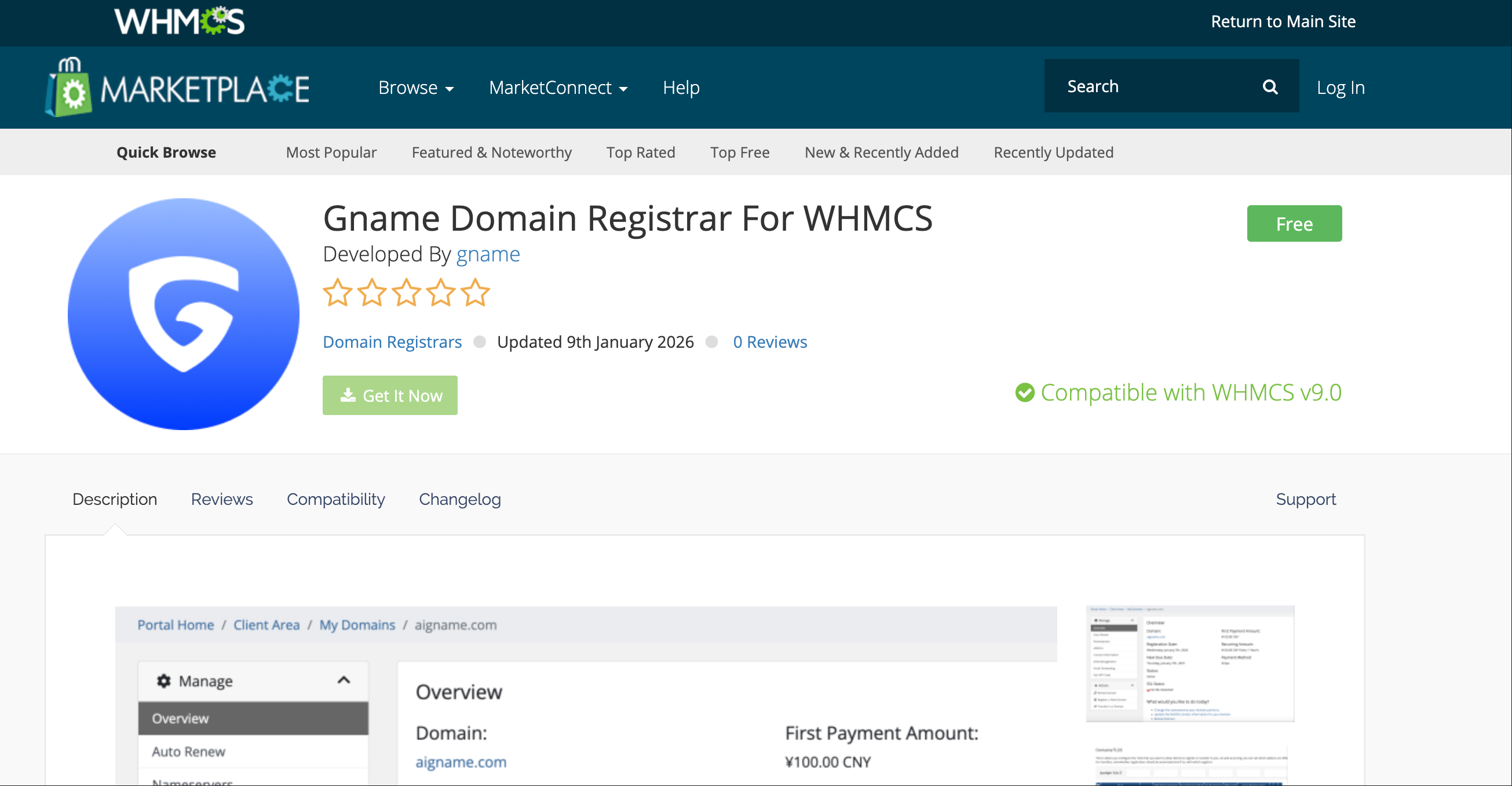
GNAME module listing on WHMCS Marketplace
II. Deploy the module files
- Extract the package and confirm that the module folder is named gname. If the extracted directory uses another name, rename the module directory to gname.
- Upload the entire gname folder to the WHMCS registrar module directory.
Target path<WHMCS root>/modules/registrars/gname/
- Avoid an extra nested path such as modules/registrars/gname/gname/.
- Confirm that the web server user can read the module files.
III. Activate the module in WHMCS
- Sign in to the WHMCS admin area and open Apps & Integrations.
- Select the Domains category, locate Gname, and click Activate.
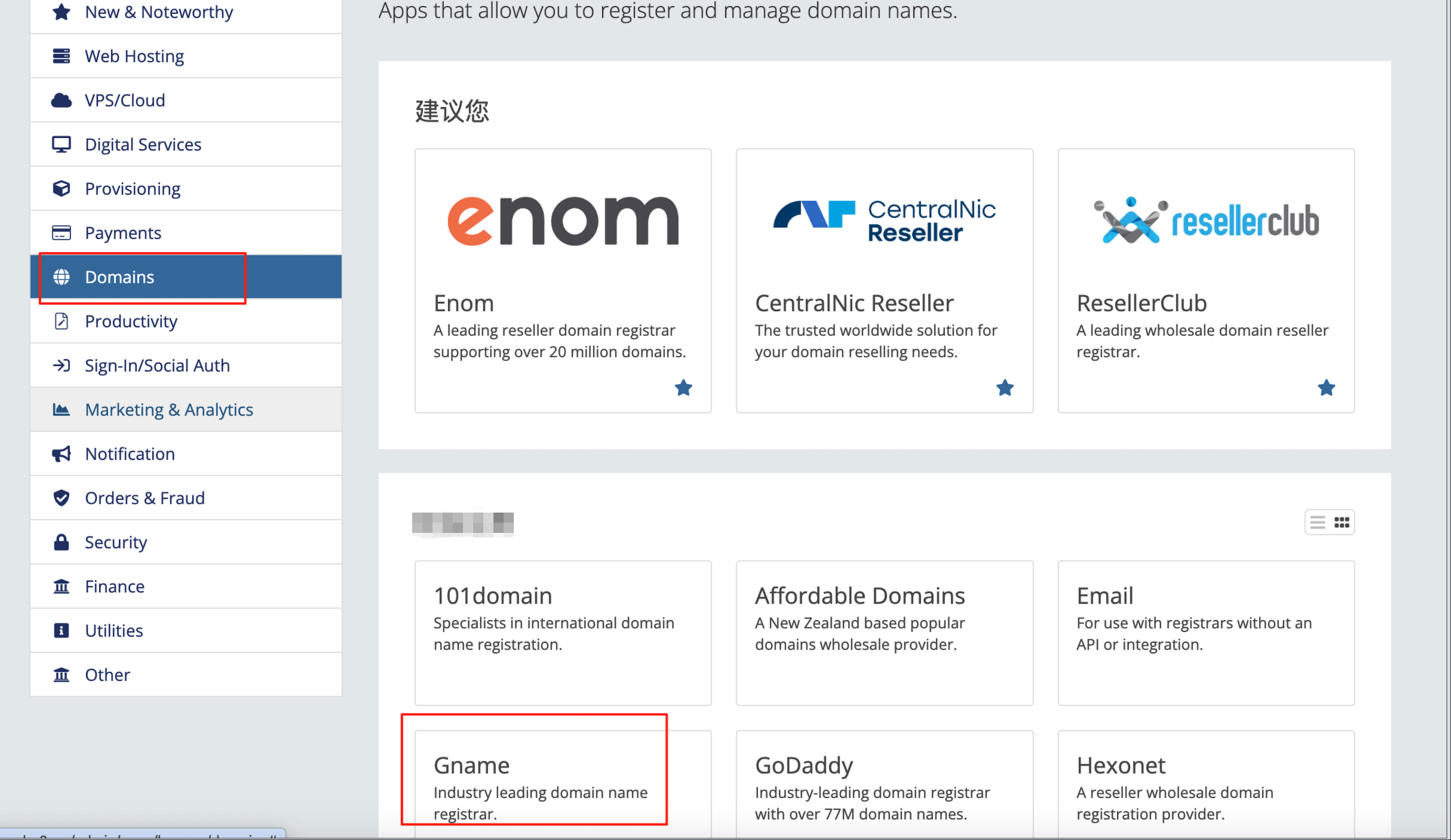
Locate Gname in the Domains category; the screenshot uses a Chinese-language interface
Activation check: If the module row displays Disable and Configure controls, the module is normally active.
IV. Configure the AppID and AppKey
Click Configure on the Gname module row, then enter the API credentials from the GNAME control panel.
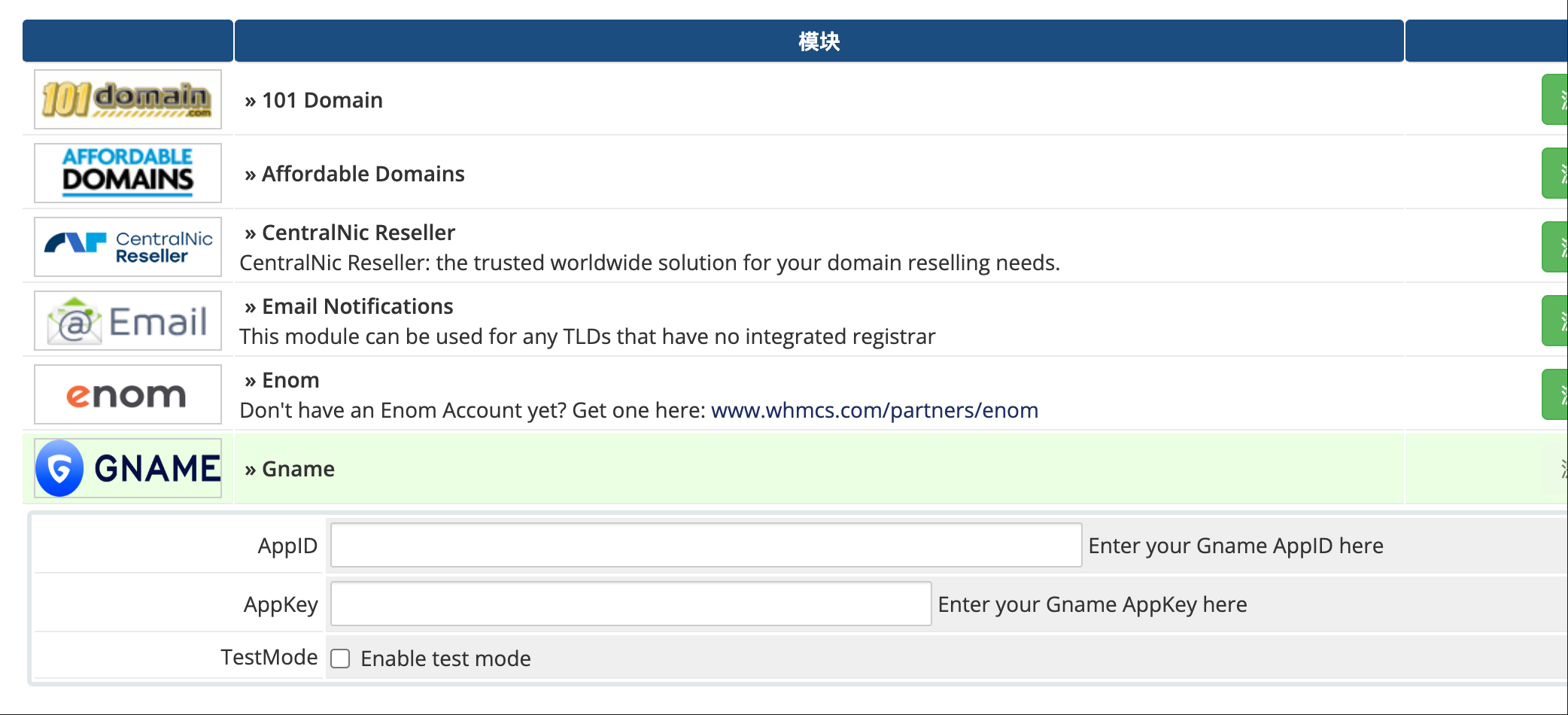
Enter the AppID and AppKey, then save the changes
- AppID: Enter the AppID generated or assigned in the GNAME control panel.
- AppKey: Enter the AppKey associated with that AppID.
- TestMode: Enable only when a supported test environment is available and you are ready to test. Leave it disabled for normal production use.
- Click Save Changes and confirm that the page returns no error.
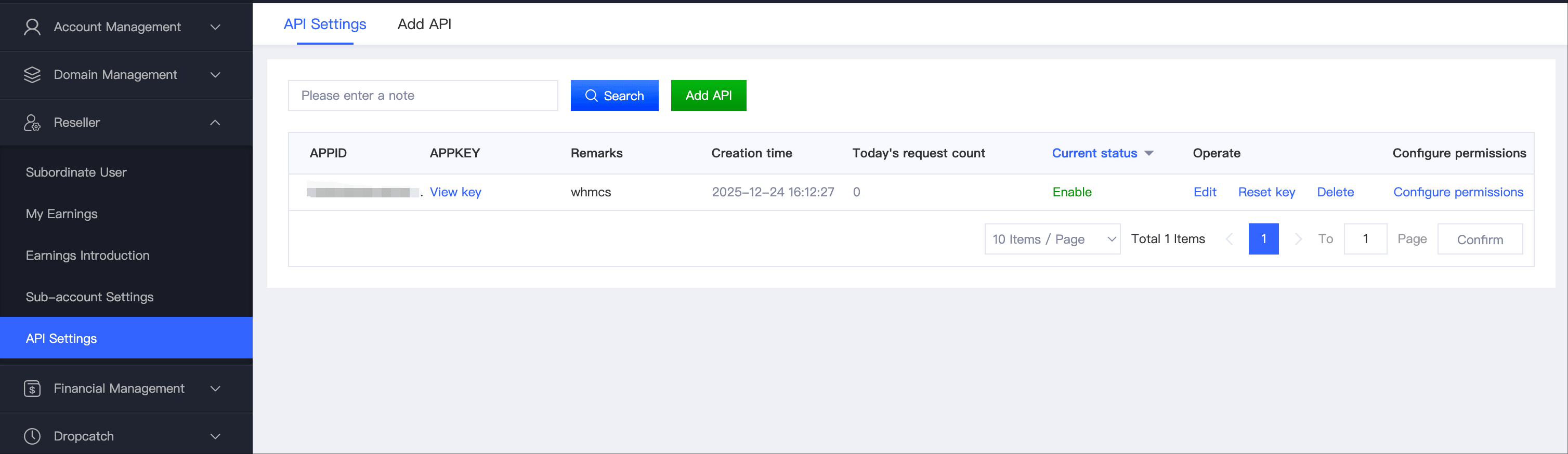
API Settings in the GNAME control panel
Reseller account requirement: The API Settings feature in the GNAME control panel is available only to reseller accounts. If API Settings is unavailable, confirm that the current account has reseller access enabled.
Configure API permissions: In the GNAME API Settings list, find the AppID and click Configure Permissions. In the permissions dialog, expand Domain Management and select the domain-related permissions required by the module, such as Register Domain, My Domains, Template Management, PUSH Domain, Renew Domain, Transfer In, External Import, Transfer Out, Notes Management, Offline Registration, and Batch Operations. Click Confirm Configuration when finished.
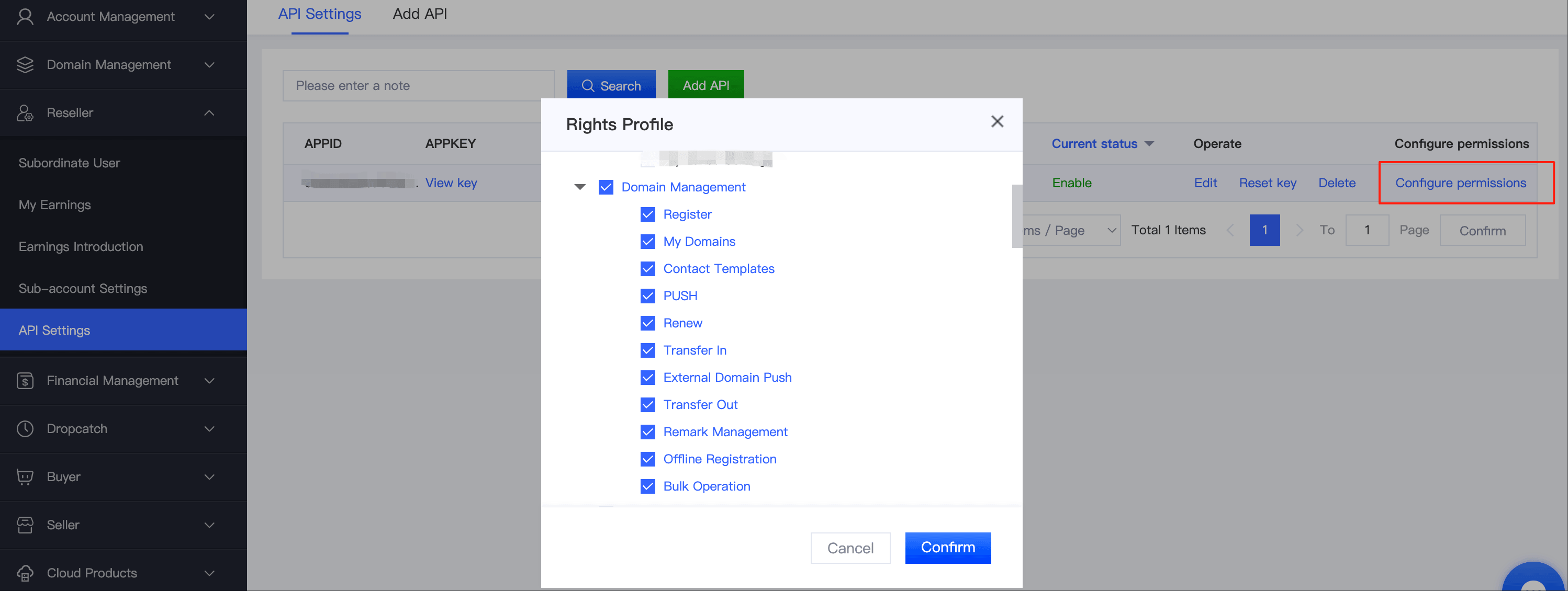
Configure Permissions: expand Domain Management, select the permissions required by the module, and confirm the configuration. The screenshot uses a Chinese-language interface.
Credential security: Treat the AppKey as a secret. Do not share it in chat, support screenshots, or public documents, and never commit it to a source repository.
V. Verify the installation
- The Gname module remains active and its configuration page opens normally.
- The AppID and AppKey are saved without authentication or connection errors.
- Run a non-production check, such as a domain availability lookup, before using the module for live orders.
Troubleshooting
| Issue |
Check first |
| Gname does not appear in the admin area |
Confirm the module is installed at modules/registrars/gname and that the package did not create an extra nested gname directory. |
| The module will not activate |
Check WHMCS compatibility, file integrity, and server read permissions. Review the WHMCS and PHP error logs for details. |
| API connection or authentication fails |
Copy the AppID and AppKey again and remove leading or trailing spaces. If IP allowlisting or API permission restrictions are enabled, verify those settings as well. |
Version note: Before upgrading WHMCS, PHP, or the module, review the Marketplace Compatibility and Changelog information and validate the change in a test environment.
Before contacting support
- Record the WHMCS version, PHP version, and module download date.
- Collect the time of the error, steps to reproduce it, and sanitized log excerpts.
- Redact customer data from screenshots and never include the AppKey.